

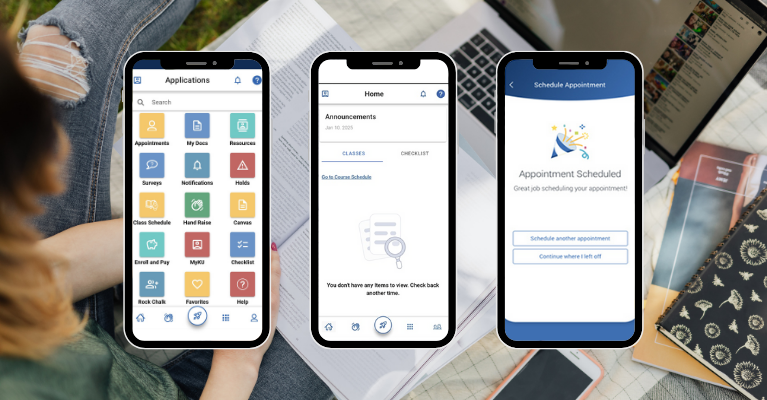
Download the Navigate App:
-
Visit your device's app store and download Navigate 360 Student. Alternatively, click the Navigate Mobile button above
-
Launch the app and choose A&M-Texarkana from the dropdown
-
Login with your EagleID (john1234)
Don't have a smartphone? You can access Navigate for Students from your Digital Backpack.
Navigate FAQs
How do I access Navigate?
-
Mobile: Download the Navigate app on your mobile device & select A&M - Texarkana from the dropdown. Login with your Eagle-ID (john1234).
-
Desktop: Go to your digital backpack, login with your Eagle-ID (john1234), and select Navigate for Students.
How do I make an appointment in Navigate?
-
Click Appointments at the bottom of the app (mobile) or from the left navigation (desktop). Select My Team to schedule with your campus connections, lke your mentor or advisor, or simply select Get Assistance in the top-right to go to the appointment wizard.
-
Choose a Care Unit (tutoring, advising, etc.)and service, and then pick a date and staff member (optional)
-
Choose whether you want to meet in-person or virtually, pick a Service Location, and choose a course (optional). Then select a Time you want to meet from the options that appear.
-
Review your appointment details, add any notes or questions, and click Confirm. You’ll get a confirmation email and/or app notification, as well a zoom link for virtual appointments.
Why are my login credentials not working?
-
Make sure you’re logging in through the correct Digital Backpack or the official Navigate Student app. Using another university’s Navigate link won’t accept your credentials.
-
Make sure you’re selecting Texas A&M University–Texarkana as your school when you launch Navigate through the app.
-
Double-check you’re using your EagleID (john1234). If your account is locked or you can't remember you password, you can reset and unlock through the TAMUT Password Self-Service Page.
-
Staff members login through their Digital Backpack with their staff credentials (jdoe) and select Navigate for Staff. If you are a staff that is also a student, you will need to use your student credentials to access Navigate for Students.
-
If it still doesn’t work, contact the A&M–Texarkana IT Help Desk at (903) 334-6603 or helpdesk@tamut.edu for assistance, or put in a ticket through TDX.
I don't see an appointment time, what should I do?
If you don’t see your appointment time in Navigate, here are the most common fixes:
-
Check your email confirmation – Navigate usually sends an email (and sometimes a text or app notification) with the appointment details. Make sure the appointment was confirmed.
-
Make sure you’re looking in the right place – In Navigate, click on Appointments → Upcoming to view scheduled times. Sometimes students accidentally look under “History.”
-
Refresh or log out/in – Occasionally, appointments don’t load correctly. Logging out and back in, or refreshing the app/browser, can fix it.
-
Verify your account – Make sure you’re signed in to Navigate with your A&M–Texarkana EagleID, not a personal account.
-
Appointment might not have been finalized – If you clicked out before confirming, it may not have saved. Try scheduling again.
If you still don’t see your appointment:
-
Reach out directly to the office you scheduled with (Advising, Tutoring, Career Services, etc.) to confirm they have you on their schedule.
-
Or contact the IT Help Desk at helpdesk@tamut.edu / (903) 334-6603 if you think it’s a technical issue.